
System Control Table (SCT)
The following changes were made to the SCT.
Save SCTs in the Model
SCTs can now be saved as part of the model file or as an external file. This is similar to the manner in which RPL sets can be saved either in the model file or as an external file. This behavior is controlled by the new Save in a Separate SCT File and Save in the Model File options on the General tab of the SCT Configuration window, as shown in the screenshot below. Save in a Separate SCT File is selected by default to maintain current behavior. Any number of SCTs may be saved in a model file.
Figure 1.16 Save SCT in Model option
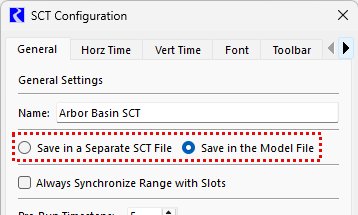
See SCT Save Location in System Control Table (SCT) for more information.
The following additional changes were made to support this new functionality.
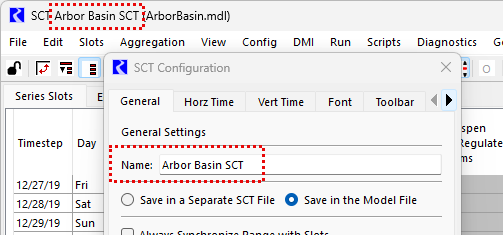
• SCTs can now be given a name on the General tab of the SCT Configuration window to differentiate them. The name is displayed in the top left corner of the SCT.
Figure 1.17 SCT Name
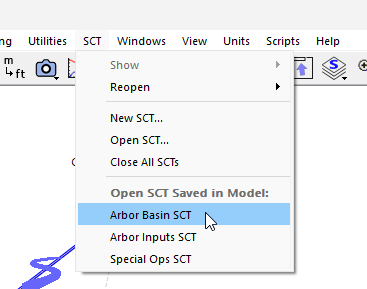
• There is a new SCT menu on the workspace. Previously this was a sub-menu on the Workspace menu. The SCT menu now contains a list of SCTs saved in the model. Clicking on an SCT name in this list opens it.
Figure 1.18 SCT Menu
• The Open SCT script action now supports opening SCTs saved in the model. See Open SCT in Automation Tools for more information on this script action.
• The Quick Start window now supports opening SCTs saved in the model. See Opening Models and Files Using the Quick Start in User Interface for more information on the Quick Start.
Object Shortcuts to SCTs
It is now possible to create shortcuts to SCTs from the Object Viewer and Open Object windows. See the section on Object Shortcuts for information on the new object shortcuts to SCTs.
Revised: 05/31/2026