
Object Windows
The following changes were made to the Object Viewer and Open Object window.
Object Shortcuts
A new Object Shortcut Manager has been added. The Object Shortcut Manager is used to create shortcuts to SCTs and plot pages from the Object Viewer and Open Object windows. These shortcuts aid the work flow by giving quick access to frequently used windows.
Figure 1.3 Object Shortcut Manager

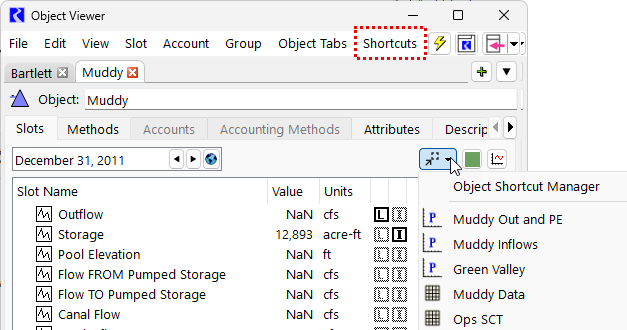
Once created in the Object Shortcut Manager, shortcuts are available from both the Shortcuts top-level menu and a menu button in the Object Viewer and Open Object windows (see Figure 1.4). These menus contain all shortcuts available to the currently selected object as well as an option to open the Object Shortcut Manager. Selecting a shortcut in the menu will open the window that it has been configured to open.
Figure 1.4 Shortcut menu button on the Object Viewer
See Object Shortcut Manager in User Interface for more information.
Find Slots and Find Accounts
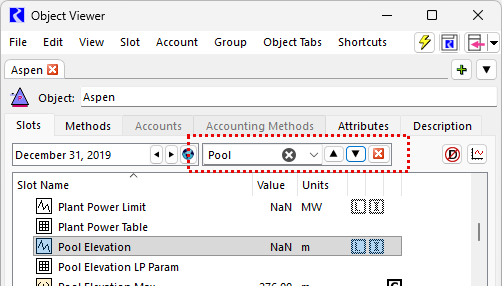
A new Find utility was added to the top of the Slots tab and Accounts tab of the Object Viewer and Open Object windows. The Find panel can be opened by selecting Find from the Edit menu or using Ctrl+F. Once opened, initiate a search by typing into the Find field. The view will scroll to and select the first slot or slot group that contains the text. Search for other slots containing the text by using the up or down arrow. An example is shown in Figure 1.5.
Figure 1.5 Sample Find Slots entry on the Slots tab of the Object Viewer
The Find utility behaves in a similar manner on the Accounts tab but searches accounts rather than slots.
Revised: 05/31/2026