
RiverWare Policy Language (RPL)
The following changes were made to the RiverWare Policy Language and related utilities.
RPL Debugger Layout
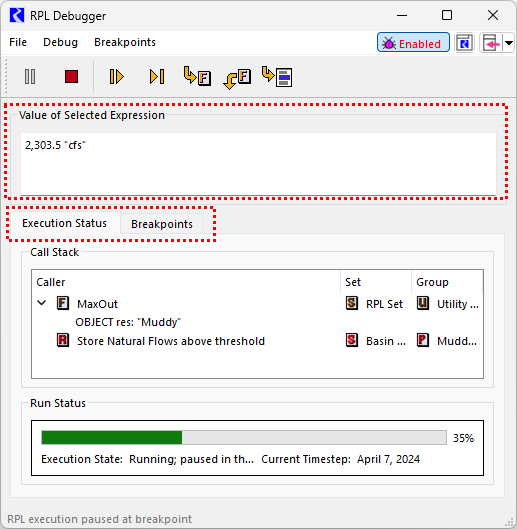
In order to provide improved sizing of panels with the addition of RPL Debugger Conditional Breakpoints, the layout of the RPL Debugger has been updated to separate the content onto two separate tabs.
• Execution Status - This tab contains the call stack and run status bar.
• Breakpoints - This tab contains the list of breakpoints and the new Selected Breakpoint Settings panel, where you can now choose to add conditional logic to a breakpoint. (See RPL Debugger Conditional Breakpoints for more information.)
The RPL Debugger menus, buttons, and the Value of Selected Expression panel are always visible with the Value of Selected Expression now at the top of the Debugger.
Also, the breakpoint icon has been modified to be a red circle instead of an octagon.
Figure 1.8 RPL Debugger new layout with Value of Selected Expression at top and tabs
RPL Debugger Conditional Breakpoints
It is now possible to add conditional logic to a breakpoint so that execution pauses at the breakpoint only when the specified condition is true. This can be very helpful if you have a breakpoint on an expression inside a FOR loop. For example, assume you have a breakpoint on an expression inside a FOR loop over a list of many objects, and you want to see how the expression evaluated for an object far into the list. Previously you would have to click the Continue button many times until arriving at desired evaluation of the expression. Now you can simply add a condition to the breakpoint so that it pauses only when the looping variable equals the desired object. A sample is shown in Figure 1.9.
Figure 1.9 RPL Debugger showing a breakpoint with a conditional RPL expression
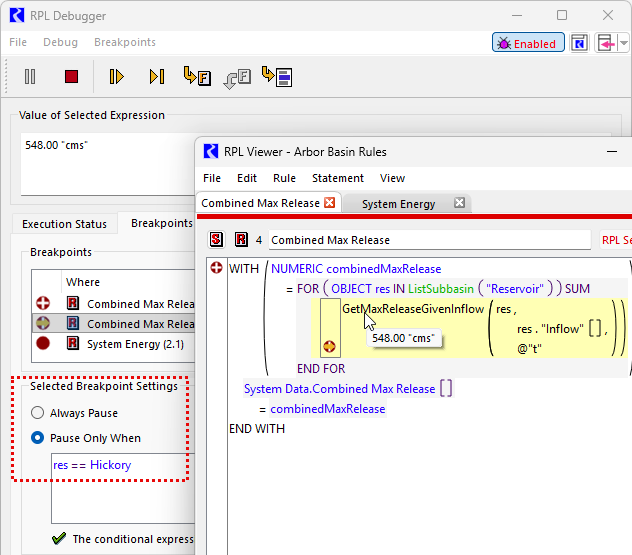
Every breakpoint now has two options that can be selected in the new Selected Breakpoint Settings panel as shown in Figure 1.9.
• Always Pause - This matches previous behavior and is the default. Execution will pause at the breakpoint any time it is encountered.
• Pause Only When - When this option is selected, you can specify a boolean expression, and execution will pause at the breakpoint only if the expression evaluates to TRUE when the breakpoint is encountered.
The conditional expression for a breakpoint is formulated in RiverWare Policy Language (RPL) using the RPL Palette. It can contain any valid boolean expression, including calls to global functions. The breakpoint conditional expressions are aware of the breakpoint’s context and thus can make use of any local variables that are valid for the expression or statement on which the breakpoint is placed, for example, a looping variable from a FOR loop or a local variable defined in a WITH statement. If the breakpoint is located in a function, the conditional expression can include arguments to the function. If the breakpoint’s conditional expression is invalid, the breakpoint will always be skipped. In other words, it will behave as if the condition were false.
A breakpoint that has a conditional expression applied to it has white plus sign inside the red circle icon to indicate that it is a conditional breakpoint.
See Selected Breakpoint Settings in Debugging and Analysis for more information on conditional breakpoints.
RPL Assignment Viewer
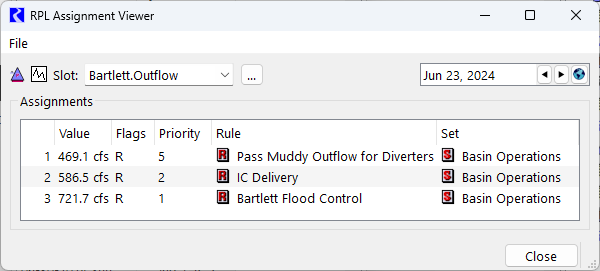
The RPL Assignment Viewer is a utility to inspect the history of RPL assignments made to a series slot at a specific timestep during the most recent run. Unlike standard slot and SCT displays, which show only the final value, flag, and priority, the RPL Assignment Viewer displays every assignment that set the slot, in the order they occurred.
For a particular series slot on a timestep, view all assignments made. Each assignment includes:
• Value (with units)
• Flag set (e.g., R or Z)
• Priority
• Rule name
• RPL set name
Assignments are listed chronologically, with the final value at the bottom.
Figure 1.10 RPL Assignment Viewer shown with three assignments
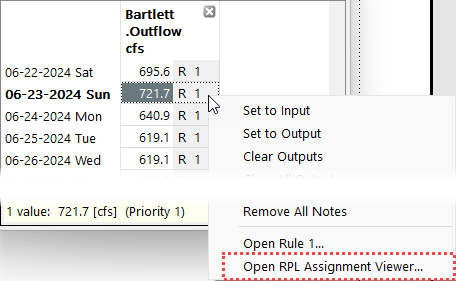
The RPL Assignment Viewer can be opened from a right-click menu from the slot widows, SCTs, and account-related windows.
Figure 1.11 Screen shot of using the right-click menu to open the RPL Assignment Viewer
It is also available from the workspace using the Policy and then RPL Assignment Viewer menu.
RPL Assignment Tracking is disabled by default to avoid performance impacts. It can be enabled via a new RPL Parameter in the Settings Manager. The RPL assignment information can optionally be saved in the model file, also controlled by a new RPL Parameter.
Figure 1.12 RPL Assignment Tracking settings in the Settings Manager

See RPL Assignment Viewer in Debugging and Analysis for more information.
RPL Set Saving Options
In RiverWare 9.6, changes were made to the file saving options if a ruleset or optimization goal set was saved in the model file. Only an export operation was allowed. This limited certain use cases in which it was desirable to also save the set as a separate file. Now, when these sets are saved in the model file, the following behavior is available:
1. The set allows you to also save to an external file using a new Save set to File menu option.
2. A set that has also been saved to a separate file now has Save and Save As operations available in the File menu, as in earlier versions, including standard keyboard accelerators.
3. The Save Location at the top of the set editor window now lists the path to the file, along with “Model File,” if the set has also been saved to a separate file.
No changes were made to RPL Sets when configured to be saved only to an external file. You are still responsible for saving the file as needed.
See RPL Parameters in RiverWare Policy Language (RPL) for more information on saving RPL sets.
New Predefined Functions: RuleName, GoalName
Two new predefined functions were added to RPL:
• RuleName returns the name of the RBS rule, initialization rule, or iterative MRM rule from which it is called.
• GoalName returns the name of the optimization goal from which it is called.
The new functions can be located in a user-defined function that is part of a function call chain originating from a rule or goal, in which case, it will return the name of the rule or goal that initiated the call chain.
If either function is called from a context other than a rule or goal, it will return an error.
See RuleName in RiverWare Policy Language (RPL) or GoalName in RiverWare Policy Language (RPL) for more information on these two functions.
Revised: 05/31/2026