
Object Shortcut Manager
The Object Shortcut Manager is used to create shortcuts to SCTs and plot pages from the Object Viewer and Open Object windows. These shortcuts aid the work flow by giving quick access to frequently used windows.
Note: Currently only the Object windows can show shortcuts. Also shortcuts are only available to Plot Pages and SCTs. This will likely be enhanced and extended in the future.
Accessing the Manager
The Object Shortcut Manager can be accessed from:
• On the main RiverWare workspace, use the Workspace, then Objects, and then Object Shortcut Manager menu.
• On the object windows, use the Shortcuts and then Object Shortcut Manager menu
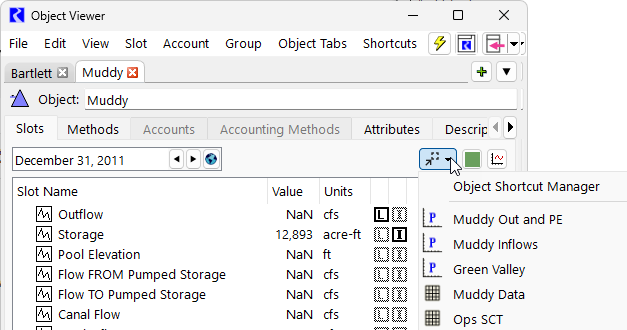
• On the object windows, once a shortcut is enabled, use the shortcuts dropdown menu and select Object Shortcut Manager. For more information, see Shortcuts.
Tour of the Manager
Use the Object Shortcut Manager to create, edit and delete shortcuts. The following figure shows a sample:
Figure 3.27 Screenshot of a Sample Shortcut Manager
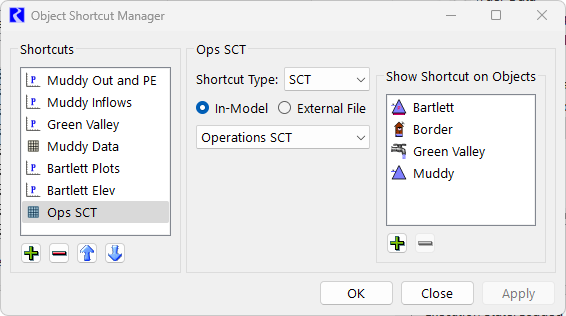
The left side of the manager contains the list of created shortcuts and controls for manipulating them:
• Select the green plus button to add a new shortcut
• Select the red minus button to remove the selected shortcut,
• Use the up and down arrows to move the selected shortcut up and down the list.
• Double-click on a shortcut to edit its name.
Use the middle set of controls to configure the selected shortcut. The Shortcut Type menu determines the type of window that will open, either a Plot Page or an SCT. Change the selected window type to display controls for specified window. Then for each type, select the named plot page (See Figure 3.28), in-model SCT, or external SCTs (See Figure 3.29).
Figure 3.28 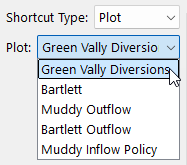 Shortcut Manager with Plot Shortcut Type Shown
Shortcut Manager with Plot Shortcut Type ShownFigure 3.29 Shortcut Manager with SCT Shortcut Type Shown
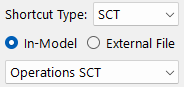
The right side of the manager contains the controls for specifying the objects for which the shortcut are shown in their object windows. Use the green plus to add objects to the list using the object selector. You can specify one or more objects. Use the red minus to delete objects from the list. The objects shown will then display that shortcut on its Open Object and Object Viewer windows.
Shortcuts
Once created in the Object Shortcut Manager, shortcuts are available from both the shortcuts top-level menu and a dropdown menu button in the Object Viewer and Open Object windows.
These menus contain all shortcuts available to the currently selected object as well as an option to open the Object Shortcut Manager. Selecting a shortcut in the menu will open the window that it has been configured to open. The dropdown menu button is only visible if there is at least one shortcut available to the current object.
Figure 3.30 The Shortcuts menu in the Object Viewer
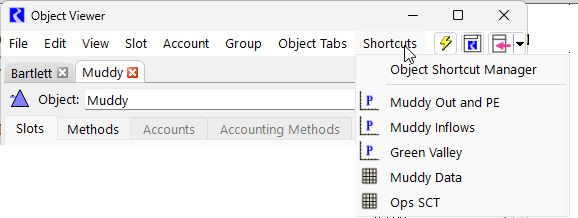
Figure 4: The shortcut dropdown menu on the Object window showing the Elevations shortcut configured in Fig 1.
Figure 3.31 The shortcut menu button on the Object Viewer
Revised: 05/30/2026