
Simulating Scenarios
A scenario is a specific combination of RiverWare inputs that create a RiverWare run. The generation, simulation, and post-processing of RiverWare scenarios are controlled from the Scenarios menu in RiverSMART.
Note: These menus are disabled if any Configuration windows are open for files or events on the workspace; configuring and running scenarios are mutually exclusive actions.
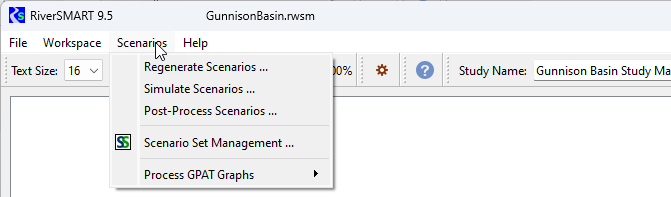
Generating Scenarios
The Scenario List Organizer allows you to define scenarios from all potential combinations of inputs linked to RiverWare. To open this utility, select Scenarios, then Generate Scenarios (or Regenerate Scenarios) on the Scenarios menu.
Figure 2.3 Scenario List Organizer
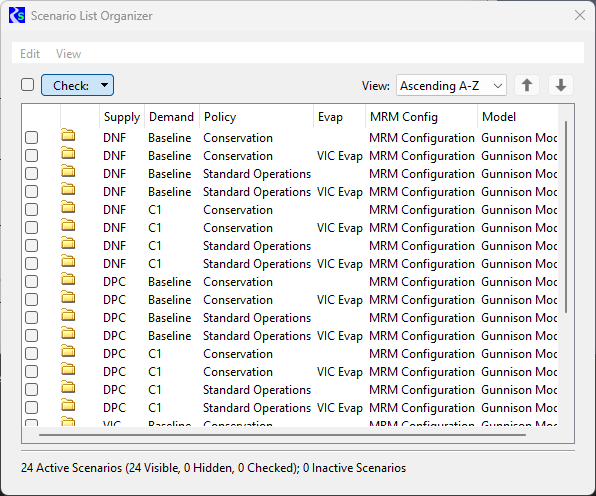
A column is created for each RiverWare input category. In the example, the RiverWare DMIs have been assigned one of three category names in their configuration windows, so these categories show up as separate columns: Supply, Demand, and Evap.
The scenario name is automatically formed by concatenating the column names from left to right. By default, the columns are displayed in alphabetical order, but you can drag them into any order that is useful for identifying the scenarios.
You can make additional changes to scenario names by selecting Edit, then Scenario Name Configuration. The Scenario Name Configuration allows you to select the columns to include in the scenario name. It also allows you to define the separator between the components.
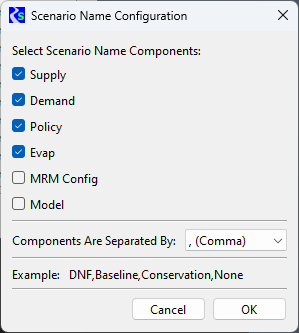
In this example, the same MRM Configuration and Model are used for all scenarios, so including them in the name adds no meaningful information to help differentiate among scenarios. The check boxes for these elements are therefore cleared to exclude them from the name. A comma is selected as the separator in the Components Are Separated By menu. An example scenario name is displayed at the bottom of the window.
Caution: When you generate scenarios, RiverSMART assigns the scenario names to the folders it creates for the generated files. Therefore, if you make changes to the scenario names after you generate scenarios, all simulation and post-processing state information associated with the previous names are lost when the scenarios are regenerated.
Hiding and Deactivating Scenarios
As shown in Figure 2.3, the Scenario List Organizer indicates that 24 scenarios have been created from the combination of inputs to RiverWare. Not all of these combinations are meaningful, however—for example, VIC Evap should only be used with VIC supplies. Only 24 scenarios among the 24 should be run for this model.
To eliminate unwanted combinations, you can select the unwanted scenarios and deactivate them. To select scenarios, select Check and then one of the following options:
• All—selects all rows (scenarios); this is equivalent to selecting the Check check box.
• None—clears all rows.
• Selected—selects the selected rows; this is equivalent to selecting individual row check boxes.
Once you have selected unwanted scenarios, you can deactivate them by selecting Edit, then Deactivate Checked Scenarios. When a scenario is deactivated, it is made unavailable throughout RiverSMART and is not displayed in any RiverSMART windows.
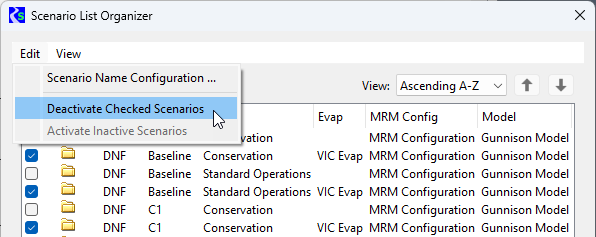
If you deactivate a scenario by mistake, you can reactivate all scenarios by selecting Edit, then Activate Inactive Scenarios. You can then select the correct ones and deactivate them.
You can also dynamically hide and show active scenarios in the current window. Hiding a scenario does not deactivate it; it simply hides the scenario in the current window and does not affect other windows.
To hide active scenarios, select the rows, then select View, then Hide Checked Scenarios. To show all active scenarios, select View, then Show Hidden Scenarios.
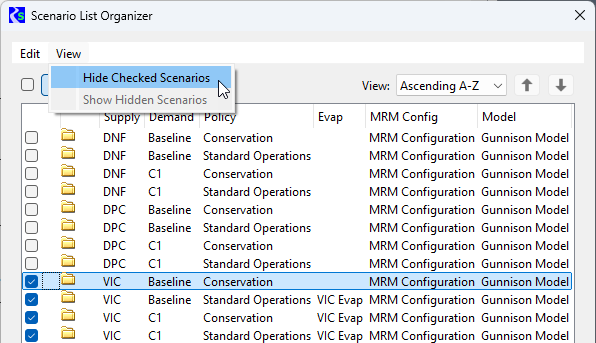
The status line at the bottom of the window displays the number of scenarios active, shown, hidden, and currently selected.
Simulating Scenarios Overview
The Scenario List Simulator is the main interface used to simulated scenarios.
Access the window using the Scenario and then Simulate Scenarios menu.
Note: You cannot open the Scenario Simulator if you have any Event windows open, and vice-versa. Close all event windows before simulating scenarios.
The Scenario List Simulator has two main panels, one for showing the scenarios and their status and one for diagnostics:
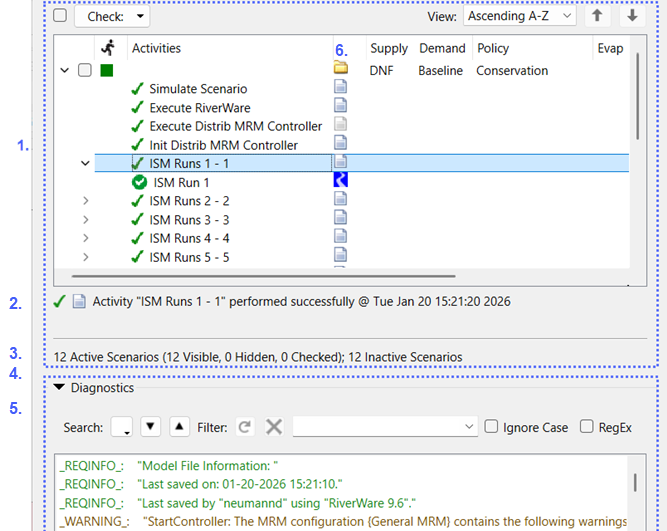
1. The top panel shows a nested view of the simulation activities and their status.
2. This row shows the status for the selected activity.
3. This row shows the number of active and inactive scenarios, including those visible, hidden and checked.
4. In this area, there is a non-visible splitter to change the relative heights of the panels.
5. The bottom panel shows diagnostics. As you select a row in the top panel, the resulting diagnostics are shown in the lower panel. See Diagnostics Panel.
6. This column contains buttons for each activity.
Simulation and Activities Panel
The top panel displays a two-level tree view that lists the activated scenarios at the top level. Within each scenario, the activities that have been completed during simulation are listed. To open this window, select Scenarios, then Simulate Scenarios on the RiverSMART menu.
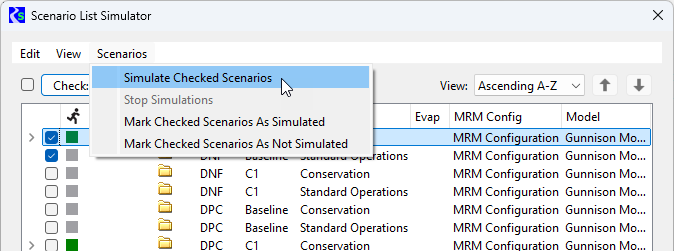
To initiate a RiverWare MRM run using the scenario inputs, select the scenario check box, and then select Scenarios, then Simulate Checked Scenarios.
MRM runs are typically set up as distributed runs. If they are not set up that way, they are automatically converted into distributed runs using the default number of processors on the machine. If you select more than one scenario in the Scenario List Simulator, each one runs sequentially until all are completed.
If you need to halt execution while scenarios are running, select Scenarios, then Stop Simulations. The current scenario is allowed to finish, and subsequent scenarios are prevented from executing before they start.
Simulation Confirmations
Before simulating scenarios, RiverSMART examines each RiverWare model file configured in the scenarios being simulated. If any RiverWare model file has informational diagnostics enabled and the setting enabled to warn about those diagnostics (RiverWare Model Configuration), RiverSMART posts the confirmation shown in Figure 2.4 asking how to proceed.
Figure 2.4 Informational Diagnostics Confirmation
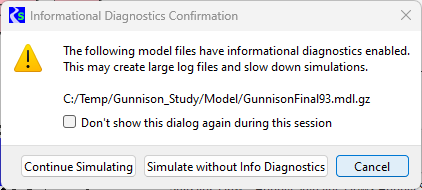
To simulate scenarios with the model files as they are, select Continue Simulating.
To disable diagnostics and continue, select the middle button, Simulate without Info Diagnostics. This setting is not saved in the original model file.
To cancel the simulation, select Cancel.
You can also select Don't show this dialog again during this session and RiverSMART won't open this confirmation dialog. The setting is only for the session; it isn't saved in the study.
See also RiverWare Model Configuration and the setting to enable or disable this checking on a per-model basis.
Viewing Run Progress
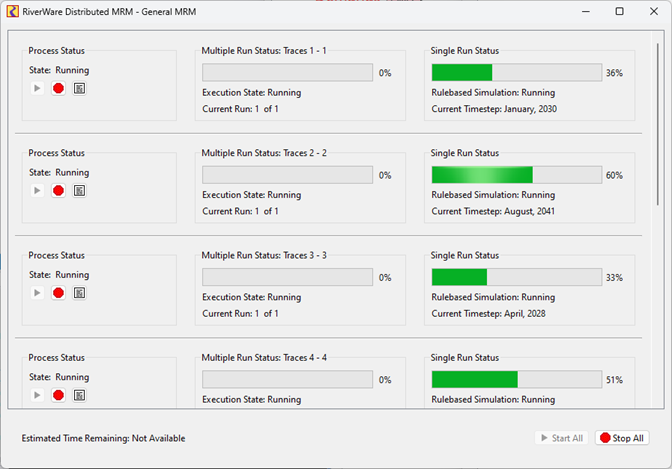
During simulation, the RiverWare Distributed MRM window is displayed. This window displays the progress of the runs as follows:
• For distributed concurrent runs, it shows the traces distributed to the various processors and the current status of each trace.
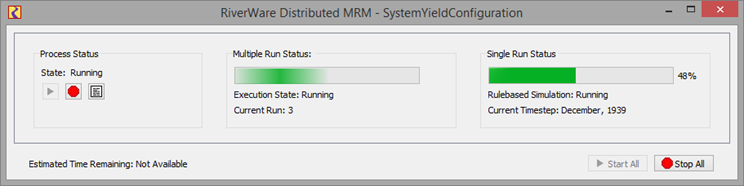
• For an iterative MRM run, it shows a single MRM run. A characteristic of iterative MRM is that the number of runs isn't known in advance, nor is the time remaining. On the simulation window, the labels show the current run number while the progress bar is a busy indicator, rather than showing the percent complete. The controller's user interface is:
Additional information on use of iterative MRM is in Using Iterative MRM configurations.
For any type of simulation, if you need to interrupt a scenario while it is running, select Stop or Stop All.
Viewing Scenario Simulation Details
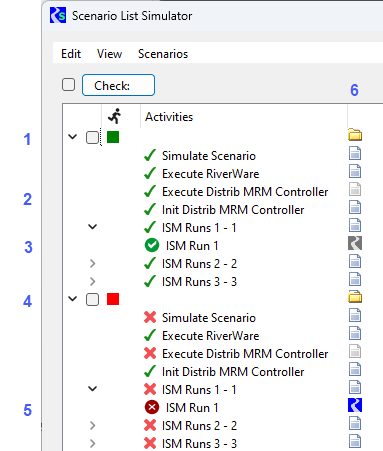
The Scenario List Simulator window displays detailed information for each scenario simulated in a two level tree view. When a scenario tree view is expanded, the activities for a simulated scenario are displayed. An activity represents a step in the scenario simulation, such as initializing the model, executing the distributed MRM controller, or simulating traces. A green check mark indicates the activity was successful; a red check mark indicates the activity failed, and an orange check mark indicates the simulation succeeded with a warning. Selecting the simulation displays the warning. A second level shows the results of the individual Traces or Index Sequential Method (ISM) runs. We recommend expanding the activity lists for simulated scenarios and reviewing the activity details for any issues.
The following annotated screenshot shows the various status values for the activities. See the explanation after the figure.
 I
I1. A green square indicates the scenario simulation is successful. The Run icon changes from gray to green. If a simulation is not successful, the Run icon turns red, item 4.
2. A check mark indicates the simulation succeeded. If the check mark is orange, the simulation succeeded with a warning.
3. A green circle check indicates a trace or ISM run was successful. Use the RiverWare icon to start RiverWare and load that trace/ISM. Saving Successful or All Runs must be configured in the MRM Event to enable this button. This is described below.
4. A red square indicates the scenario was not successful.
5. A red circle X indicates a trace or ISM run was not successful. Use the RiverWare icon to start RiverWare and load that trace/ISM. Saving all or unsuccessful runs must be configured in the MRM Event to enable this button. This is described below.
6. This column contains buttons that perform an operation on each activity. See the operations below.
Note: It is possible for the scenario Run icon to be green, even if one or more of its activities have failed.
When you select a scenario, the status line displays the current status information for that scenario, including any warning messages, if applicable. Also, the relevant diagnostics are shown in the bottom diagnostics panel.
Tip: The simulation success or failure status is saved with the study and is displayed when the study is reopened.
The following actions are supported on the list view.
• Left-click anywhere on a row to select the row. The status line is updated and any diagnostics are shown in the diagnostics panel.
• Double-click on a button to perform the button's default action. For example, double-click on the File Folder icon, a Windows Explorer window opens to the folder where the generated files for the scenario are located.
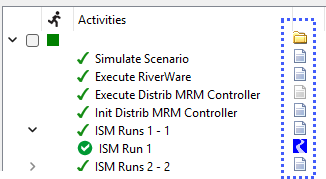
• Right-click on a button to display a context menu with all the button's actions.
• Hover over the button to get the button's tool tip, explaining its behavior.
When you select an activity, its status is displayed in the status area and the diagnostics are shown in the diagnostics panel. This may be useful in troubleshooting issues for failed RiverWare activities. The following figure shows traces that have succeeded and the resulting diagnostics. It also shows the tool tip for the ISM run activity button.
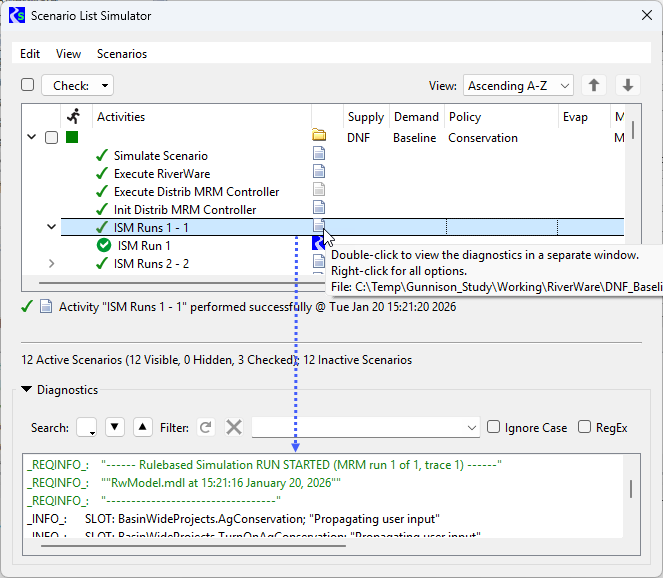
See Diagnostics Panel for more information on diagnostics.
The following figure shows a failed run.
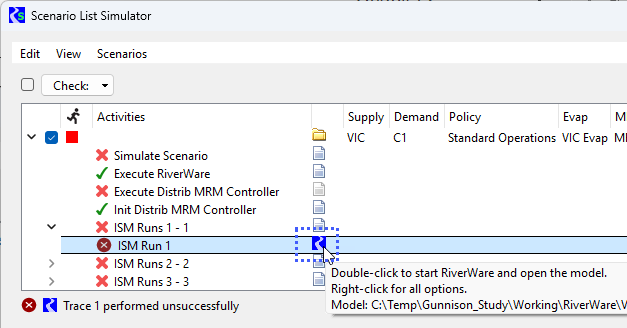
The red circle X indicates the MRM run failed. If you have selected in the MRM Event to Save Model Files after unsuccessful runs, double-click the RiverWare icon and it will start RiverWare and load the save model. This allows you to debug the model more directly. Right-click for all of the options.
You can manually override the Run icon status by selecting Scenarios, then Mark Checked Scenarios As Simulated or Mark Checked Scenarios As Not Simulated. For example, if a scenario simulation is successful, but the study is not saved afterward, the Run icon is gray when the study is reopened. You can correct this by manually setting the Run icon green.
Hiding and Deactivating Scenarios
The Scenario List Simulator window also provides options to deactivate or activate, and dynamically hide or show scenarios. These options function in the same manner as those on the Scenario List Organizer.
Deactivating a scenario makes it unavailable throughout RiverSMART and removes it from all RiverSMART windows. To deactivate scenarios, select the scenarios, and then select Edit, then Deactivate Checked Scenarios. To activate all inactive scenarios, select Edit, then Activate Inactive Scenarios.
Hiding a scenario does not deactivate it; it simply hides the scenario in the current window and does not affect other windows. If many scenarios have run successfully, you may want to hide them to reduce clutter on the workspace. To hide active scenarios, select the scenarios, and then select View, then Hide Checked Scenarios. To show all active scenarios, select View, then Show Hidden Scenarios.
Diagnostics Panel
The lower portion of the Scenario List Simulator contains the diagnostics for the selected activity. Select a row in the upper panel and see diagnostics in the lower panel. You can also double-click the button to open the diagnostics in a separate window, but the same robust searching and filtering is not supported in the separate window.
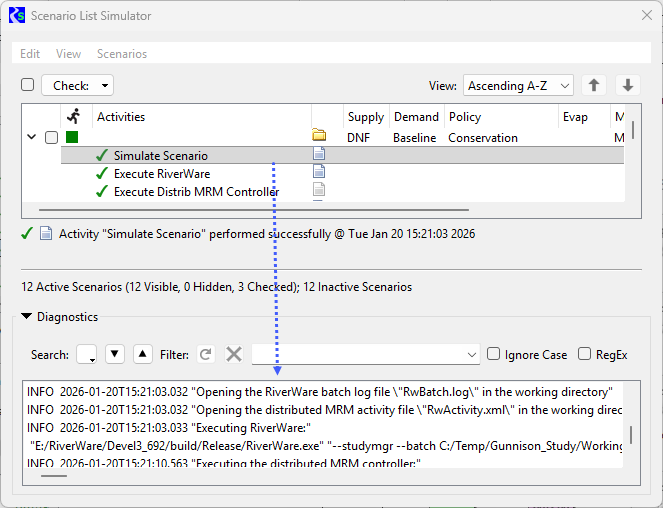
Then, search and filter as needed to find the desired diagnostics. The following sections describe the searching and filtering capabilities for the diagnostics panel. In general, the functionality is similar to the Diagnostics window in RiverWare.
There are two approaches used to find messages: Search and Filter. Search to look for a specific text string row by row. Filter to show all rows that match the text string. (You can also search on filtered results) The two approaches share the text entry field.
Figure 2.5 Diagnostic Output Screenshot with Search and Filter Controls highlighted
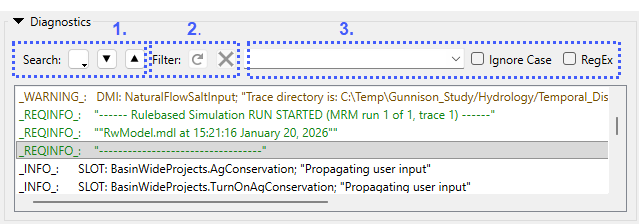
1. Search controls
2. Filter controls
3. Text entry field for search and filter; also search options
Searching
The Search controls include: the following:
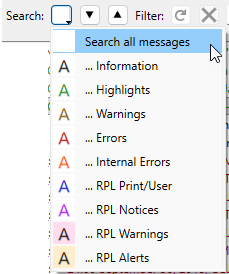
• Message Type (color coded) menu. Filter the search by the type of message displayed, i.e. by color. Select the white box just to the right of the Search field. This opens a menu as shown below. Choose an item and any subsequent searches will be filtered to only include messages of that type. If you just want to see the next message of a certain type, don’t enter anything in the search box; a search will jump to the next message of the indicated color/type.
• Search Forward button (down) 
• Search Backward button (up) 
Filtering
Filtering allows you to show only those lines that match the specified text. The Filter controls include the following buttons:
• The Apply Filter button  applies the entered text as the active filter pattern. Message rows not matching the pattern are hidden. This button is disabled when the search / filter parameters already match the currently active filter (or when the entered text is empty).
applies the entered text as the active filter pattern. Message rows not matching the pattern are hidden. This button is disabled when the search / filter parameters already match the currently active filter (or when the entered text is empty). 
• The Clear Filter  button clears filtering -- causing all message rows which had been hidden to become visible again. This button is enabled only when filtering is active.
button clears filtering -- causing all message rows which had been hidden to become visible again. This button is enabled only when filtering is active. The only direct indication that messages are being filtered is the Clear Filter (red “X”) button being enabled and discontinuous line numbers in the message list.
Search and Filter Parameters
Enter your desired search/filter text pattern in the text box. This is an editable menu to support a history of recently applied patterns.
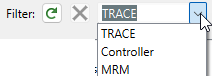
When typing in the entry field, hitting Enter is equivalent to selecting Search Forward, and pressing Shift-Enter is equivalent to selecting Search Backward.
The following options apply to both the Search and Filter functions.
• The Ignore Case check-box causes upper/lower case differenced to be ignored when comparing the pattern text to message text.
• The RegEx check-box changes the interpretation of the pattern text from “Wild Card” to “Regular Expression” syntax. (See the following section).
Note: The search functions skip over messages which have been hidden by filtering.
Search and Filter Pattern Matching Technical Details
A given message line matches the pattern if the line text contains the pattern. (This is different from the pattern matching the entire line of text).
The following is the definition for wildcard pattern matching (i.e. not RegEx):
• “?” (question mark) matches any single character. It is the same as “.” (period) in regular expressions.
• “*” (asterisk) matches zero or more of any characters. It is the same as “.*” (period asterisk) in regular expressions.
Regular Expression (“RegEx”, “regex” or “regexp”) pattern syntax is an advanced, potentially complex pattern matching format developed originally with Unix-based tools. It’s not described further in this document but is widely referenced online.
Study Folder Structure for Scenario Results
RiverSMART saves all scenario simulation results to the Study Folder you have specified, using the following structure.
Study_Folder\
Scenario\
scenario_name\
generated files
scenario_name\
generated files
Working\
RiverWare_event_name\
scenario_name\
log files
intermediate results
scenario_name\
log files
intermediate results
• The Scenario\ folder includes a folder for each scenario.
– Each scenario folder includes the RDF, CSV, and netCDF files generated for each scenario simulation.
• The Working\ folder includes a folder for the RiverWare event.
– The RiverWare event folder includes a folder for each scenario.
• Each scenario folder includes log files and intermediate results, which may be useful for debugging problems in event execution.
Keyword/Value Pair Results
In addition, if configured, when a scenario simulation is run, keyword/value descriptors are created to characterize the scenario and its input events. These descriptors are written to the MRM configuration in the RiverWare distributed model as MRM descriptors. From there, they are optionally available as outputs to CSV and netCDF files from the multiple run. Descriptor keyword/value pairs are created as follows:
• Scenario name—Scenario / scenario_name
• RiverWare Policy event—Policy / event_name
• RiverWare Model event—Mode l / event_name
• RiverWare DMI event—DMI_category / event_name
• RiverWare MRM event—MRM Config / event_name
User-created keyword/value pairs from the RiverWare MRM event window are also included.
Archiving Scenarios
Scenario outputs (RDF, CSV, NetCDF, Excel, and R Script output files) can be archived as ZIP files in user-specified archive folder. Archiving is useful if you want to conserve disk space or share outputs.
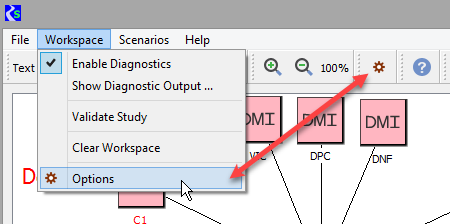
To configure archiving, select Workspace, then Options from the RiverSMART menu; alternatively, select the Options button on the RiverSMART toolbar.
In the Group area of the Options window, select Archiving to configure when and how to archive successful scenarios.
Note: Scenarios are not archived after errors.
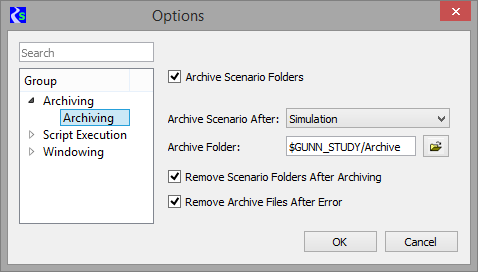
Archive Scenario Folders
Select if you want to archive scenarios. The remaining options are made available.
Clear if you do not want to archive scenarios; this is the default. The remaining options are cleared and made not available.
Archive Scenario After
Select one of the following options to specify when to archive scenarios.
• Simulation—archives after successful simulation; this is the default.
• Post-processing—archives after successful post-processing.
Archive Folder
Required field. Specify the archive folder. You can enter the path in the text box or select it through the File Chooser. The path can contain environment variables.
Remove Scenario Folders After Archiving
Select if you want scenario folders to be removed after the scenario has been archived.
Clear if you do not want scenario folders to be removed; this is the default.
Remove Archive Files After Error
Select if you want archived scenarios to be removed after an error. For example, if a scenario is simulated successfully and archived, then resimulated unsuccessfully, depending on the reasons for archiving, the archived scenario may be considered not to reflect the current state of the scenario, in which case the archive should be removed
Clear if you do not want archived scenarios to be removed after an error; this is the default.
Display Order
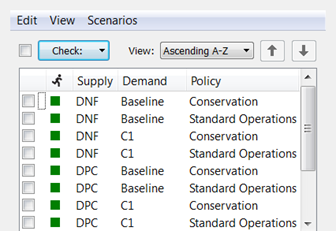
When scenarios are generated, simulated, or post-processed, the scenario order is determined by the order of the RiverWare inputs, with the leftmost input changing least frequently, and the rightmost input changing most frequently.
By default, scenarios are displayed in ascending alphabetical order, as shown in the following figure.
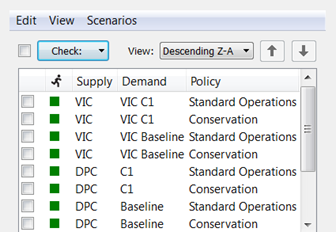
To display scenarios in descending alphabetical order, select Descending Z-A.
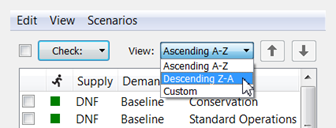
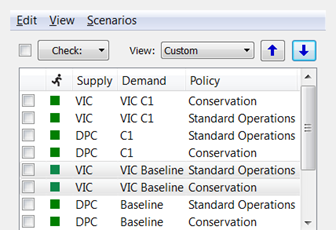
To display scenarios in a custom order, select Custom, then use the Up and Down arrows to move selected scenarios up and down one row at a time.
Updating Scenario Inputs
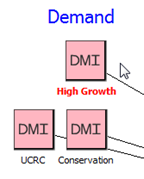
When input events (DMI, MRM, Model, or Policy) are modified, RiverSMART provides visual indicators to identify portions of the study that are out of date. If any item in an input event configuration window is modified, other than the name, the event label turns red to indicate that scenarios in which the event is included must be regenerated.
If a new input event is added to the study, its label is also red, indicating that scenarios must be regenerated to incorporate the new event.
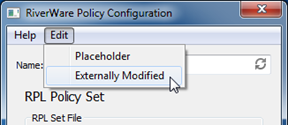
You can also manually indicate that an input event has been modified. This is useful when external files, such as a ruleset or data files, are modified, because RiverSMART is not aware of these changes. To indicate that an event has been modified, select Edit, then Externally Modified in the event configuration window. This has the same effect as modifying the event configuration: the event label turns red, and RiverSMART indicates that scenarios in which the event is included must be regenerated to bring the study up to date.
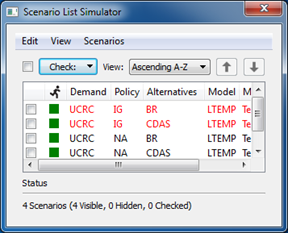
As an additional indication that scenarios may be out of date, in the Scenario List Simulator and Scenario List Post-Processor, any scenario that includes a modified event is displayed in red text. Scenarios not affected by changes to input events remain black.
Note: In the following figure, the Run status icons are green, indicating the scenario simulations were successful. This is because the scenarios in red text have not yet been regenerated with the new inputs. The Run status is based on the most recent simulation.
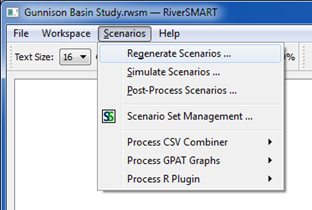
To update all scenarios that have had input events modified, you must regenerate scenarios. On the RiverSMART menu, select Scenario, then Regenerate Scenarios.
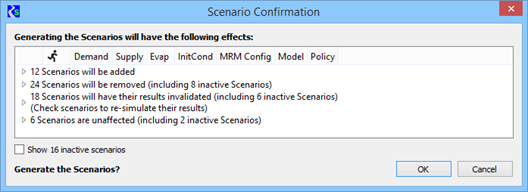
The Scenario Confirmation opens, listing the number of scenarios to be added, removed, invalidated, or unaffected, based on modifications made to input events since the last time scenarios were generated. To expand a row and list the scenarios in that category, select the arrow next to the row.
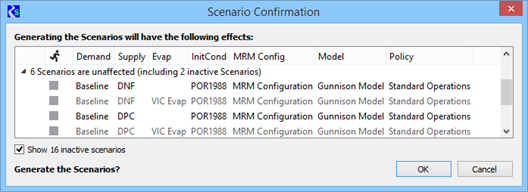
Each category description includes the number of inactive scenarios. To display inactive scenarios, select the Show inactive scenarios check box. Inactive scenarios are shown as unavailable (dimmed).
The Scenario Confirmation includes information to assist you in making informed decisions about regenerating scenarios.
Figure 2.6 Example scenario regeneration
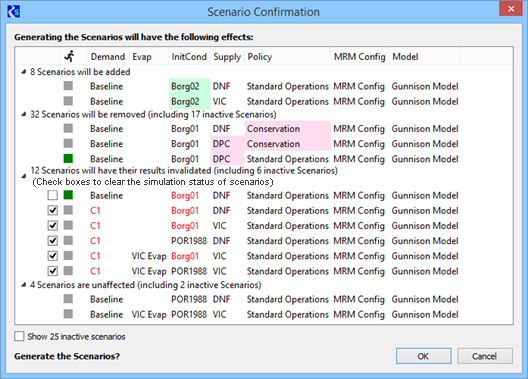
The following discussion relates to the example in Figure 2.6.
Note: Scenarios have been edited from this example to save space; therefore the counts do not match the number of scenarios shown.
In the example, pink highlights indicate scenarios to be removed, and green highlights indicate scenarios to be added. Out-of-date scenarios, whose results will be invalidated, are highlighted to indicate the input events that caused them to be out of date.
Green Run status icons identify the scenarios that have been successfully simulated. Removing these scenarios or invalidating their results could represent a loss of significant time and effort, and the simulation status informs you of this potential loss.
You can modify some input events to add scenarios without invalidating existing ones. For example, in the DMI Sequence event, extending the sequence adds scenarios without invalidating existing scenarios; however, because of the way it generates scenarios, RiverSMART cannot recognize the distinction and therefore includes the existing scenarios with the ones whose results will be invalidated.
In this example, the “InitCond” DMI sequence event was modified to add scenarios with initial condition “Borg02”. This causes scenarios with initial condition “Borg01” to be out of date. The user removed the check from the box for the “Baseline\Borg01” scenarios to preserve their results, which eliminates the need to re-simulate those scenarios. The user checks the boxes for all “C1” scenarios because they are also out of date due to the “C1” demand being modified.
When you select OK to regenerate the scenarios, all options configured in the Scenario List Organizer are reapplied; see Generating Scenarios for details. Once scenarios are regenerated, all event labels and scenario names in the Simulator List Simulator and Scenario List Post-Processor windows return to black. Any added scenarios and scenarios that had results invalidated by the regeneration display a gray Run status icon, indicating the scenario needs to be resimulated. Unaffected scenarios continue to display the Run status they displayed before the scenarios were regenerated.
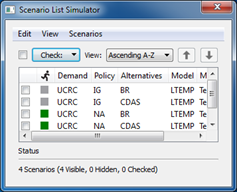
At this point, scenarios with a gray Run status icon can be resimulated and post-processed. Scenarios with a green Run icon do not need to be resimulated because their results were not affected by the changes to the input events.
Revised: 05/30/2026