
Save an SCT to a Separate File
An SCT can be saved to a separate file or in the Model File. Use procedure below to save the SCT to a separate file. See Save an SCT in the Model File for information on saving the SCT in the model file.
Use this procedure to save an SCT when it is saved as a separate file. You can save to the current file or save to a new name or location, which effectively duplicates the existing SCT.
Note: The SCT file should be saved with a .sct or .sct.gz extension so RiverWare can recognize it as an SCT.
1. To save the SCT with the current file name and extension, on the SCT menu, select File, then Save SCT. Alternatively, press Ctrl+S.
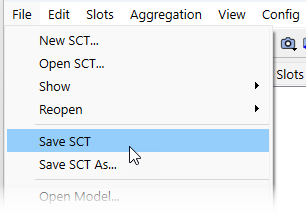
If the file already exists, a confirmation dialog box appears. Select Yes to confirm the replacement.
2. To save the SCT to a new file name or location, on the SCT menu, select File, then Save SCT As. Alternatively, press Ctrl+Shft+S.
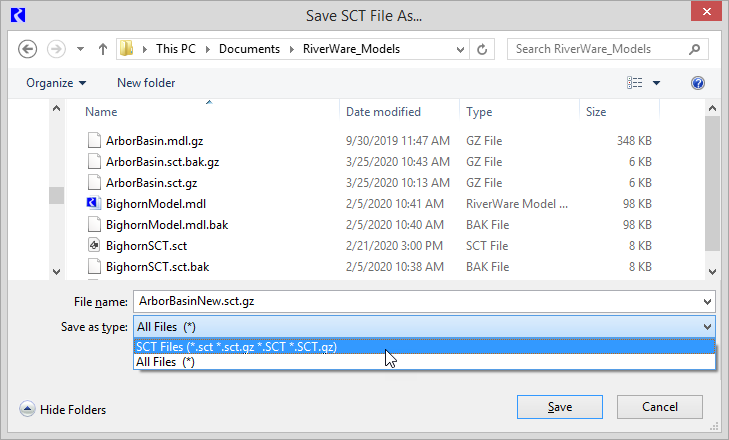
a. Use the File Chooser to navigate to the folder where you want to save the SCT. By default, the File Chooser goes to the last folder used.
b. In the File name field, enter a unique file name and an extension, as follows:
• Enter the .sct extension to save the SCT as an uncompressed file. If you do not enter an extension, this one is provided automatically.
• Enter the .sct.gz extension to save the SCT as a compressed file.
Related topics
Revised: 05/30/2026