
Scripts
The following changes have been made to RiverWare scripts.
Script Editor User Interface Improvements
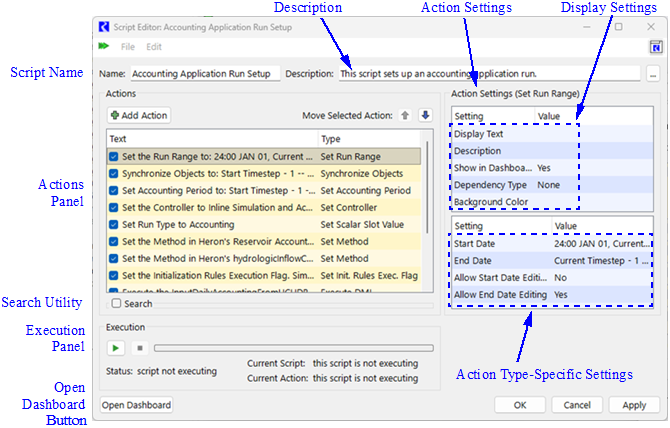
The Script Editor has been reconfigured for easier use and to make better use of space.The following changes have been made.
• The Actions list and the Action Settings panels have been separated into two columns to reduce sizing problems that frequently occurred due to limited vertical space. The Action Settings are now located to the right of the Actions List rather than below.
• The Name and Description are now displayed as separate fields along the top of the window.
• The Actions Settings have been separated into two tables: the top one containing display settings common to all action types and the bottom one containing the settings specific to the selected action’s type.
Figure 1.13 Annotated screenshot of the reconfigured Script Editor
• The Add Action menu has been replaced by an Add Action button that opens a new Script Action Palette to select the type of action to add. The Script Acton Palette contains the list of action types to select from and for each type provides a brief description.
Figure 1.14 Script Action Palette
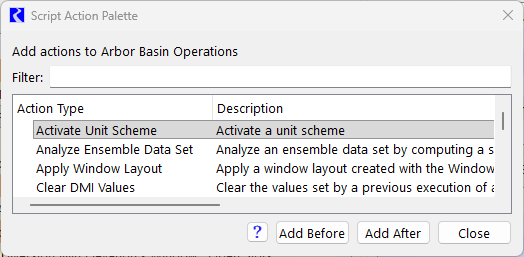
• The action descriptions in the Script Action Palette replace the separate Script Action Legend window.
• The Script Action Palette contains a Help button that opens the RiverWare User’s Guide documentation for the selected action type.
• The Script Action Palette contains a Filter field to quickly search for the desired action type. The action type list is filtered to display only those action types whose name or description contains the entered text.
See Editing a Script in Automation Tools for more information.
Changes to Open SCT Script Actions
The following change was made to the Open SCT action: this action now supports opening SCTs saved in the model. For more information see Save SCTs in the Model, and see Open SCT in Automation Tools for more information on this script action.
Revised: 05/31/2026