
SCT File menu
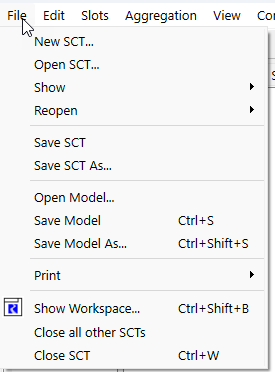
New SCT
Create an empty SCT in a new SCT window.
Open SCT
Open another SCT for this model in a separate SCT window. Allows you to have more than one SCT open at a time.
Show
Bring an open SCT to the front.
Reopen
Open another recently accessed SCT for this model in a separate SCT window. Up to six SCT files are remembered from one RiverWare session to the next. Provides quick access to all recently opened SCTs.
Currently open SCTs are excluded from this list and appear in the Show menu instead.
Save SCT
When this SCT is saved to a separate file, use the Save menu option to save the current SCT to the same name and location. No confirmation message is displayed.
Save SCT As
When this SCT is saved to a separate file, use the Save SCT As menu to save the current SCT to a new location. Use the File Chooser to assign a location and name to the new SCT.
Export SCT
When this SCT is saved in the model file, use the Export SCT menu to save the current SCT to a new file. Use the File Chooser to assign a location and name to the new SCT.
Open Model
Open another model in the workspace, replacing the current one. Use the File Chooser to select the model.
Note: This selection has no effect on the currently open SCTs.
Save Model
Save the current model to the same name and location.
Save Model As
Save the current model to a new location or name. Use the File Chooser to assign a location and name to the new model.
Print
Available only for the Series Slots tab. Options are:
• Selection—Print the currently selected cells.
• Page—Print the currently displayed cells.
• Full SCT—Print all series slots and data in the SCT.
Show Workspace
Bring the RiverWare workspace to the front.
Close all other SCTs
Available only if more than one SCT is open.
Close all SCTs except the current one without saving them. A confirmation message is displayed for each one, preventing you from inadvertently closing an SCT without saving it first.
Close SCT
Close the current SCT without saving it. A confirmation message is displayed, preventing you from inadvertently closing the SCT without saving it first.
Close Window
When this SCT is saved in the model file, use the Close Window menu to close the current SCT. Since the SCT is saved in the model file, it is just closing the window and can be restored from the SCT menu.
Revised: 05/30/2026