
Release Notes RiverSMART 9.5
The following changes were made in RiverSMART 9.5:
Enhanced Scenario List Simulator Window
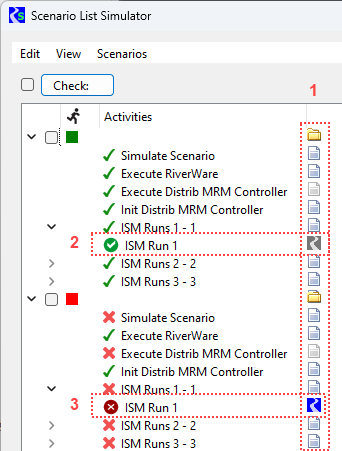
Simulating a scenario is composed of activities. The activities that are typically of most interest to users are the activities which represent the RiverWare invocations that simulate traces. There can be many RiverWare invocations and when traces fail or otherwise behave unexpectedly, it can be time consuming to open the viewers for RiverWare diagnostics and scroll through the diagnostics to identify problems. To begin to address these issues, The Scenario List Simulator window was enhanced as follows:
• The list view now has a third level. For RiverWare invocation activities, they show the individual traces or Index Sequential Mode (ISM) runs and the status.
• Each row has a button in the fourth column to either open the diagnostics, the applicable folder, or invoke RiverWare with the per-trace model file open, if available.
See the screenshot image below with the following annotations:
1. Column with buttons for diagnostic messages, folder, or RiverWare
2. Successful ISM/Trace. The RiverWare icon is disabled as runs were not configured to be saved if the run was successful.
3. Unsuccessful ISM/Trace. The RiverWare icon is enabled as unsuccessful runs are configured to be saved. You can click the icon to open RiverWare and automatically load the saved model.
Figure 1.1 Scenario List Simulator with Activities and Buttons Shown
For more information, see Viewing Scenario Simulation Details in RiverSMART User’s Guide.
Issues with Save Simulation Packages
The Save Simulation Package Files functionality was not showing the files and folders for selection. This utility was been re-implemented so that the Save Simulation Package Files now works correctly. This was filed as “RW-7073: RiverSMART Save Simulation Study Broken”.
MRM Event Allows Exporting Object Attributes as CSV
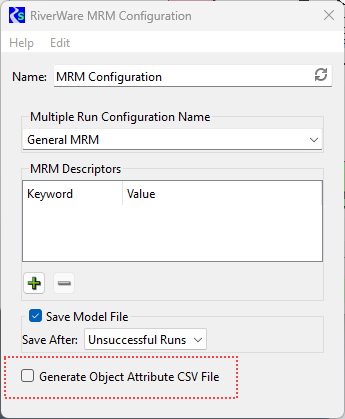
Within RiverWare, the MRM configuration now includes controls for configuring the exporting of object attributes as CSV. If so configured, the object attributes are exported at the beginning of an MRM run to ensure they’re exported regardless of whether the run succeeds.
The MRM event configuration window now has a checkbox to enable exporting object attributes, using the MRM configuration. See the screenshot shown below.
From RiverSMART, the exported CSV files are in the scenario’s output folder.
For more information, see Generate Object Attribute CSV File in RiverSMART User’s Guide.
Figure 1.2 RiverWare MRM event with Generate Object Attribute CSV File highlighted
Revised: 11/30/2025